

How to Improve Home Office Ergonomics: 7 Steps
Table of Contents
- Why Home Office Ergonomics Matter
- Step 1: Choose the Best Ergonomic Office Chairs for Your Space
- Step 2: How to Set Up a Monitor for Ergonomics
- Step 3: Position Your Keyboard and Mouse Correctly
- Step 4: Adjust Desk Height and Work Surface Layout
- Step 5: Complete a DSE Workstation Assessment Checklist
- Step 6: Add Supportive Accessories to Reduce Strain
- Step 7: Take Regular Breaks and Move Throughout the Day
- Frequently Asked Questions
Last Updated: 1 September 2026
Why Home Office Ergonomics Matter
Poor posture and uncomfortable workspaces cause neck pain, back strain, and repetitive strain injuries that sideline productivity. The good news is that improving home office ergonomics doesn't require expensive renovations. Strategic adjustments to your chair, desk, monitor position, and work habits can eliminate most discomfort within days.
A poorly set-up desk creates tension that compounds over eight hours, leaving you exhausted and sore. The right ergonomic setup keeps your body neutral and supported, so you can focus on work instead of managing pain. This guide walks you through seven practical steps to improve home office ergonomics, starting with your chair and building up to habits that keep strain away.
Step 1: Choose the Best Ergonomic Office Chairs for Your Space
Your chair is the foundation of your entire workspace. The best ergonomic office chairs support your lower back's natural curve, keep your hips level with your knees, and allow your feet to rest flat on the floor.
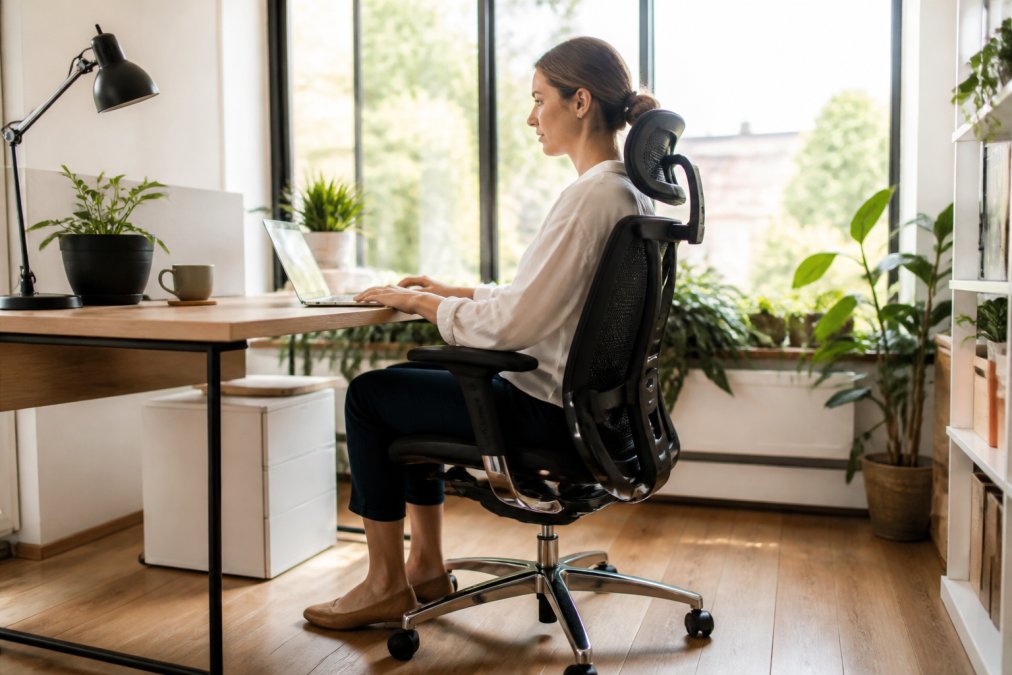
Priorise these features: adjustable seat height so your thighs sit parallel to the floor, lumbar support that fills the curve of your lower back, and armrests that support your elbows at desk height. Armrests reduce shoulder and neck strain by supporting your arms instead of forcing your shoulders to hold them up.
Invest in a chair with built-in lower back support that you can adjust to match your spine's curve. Inspree stocks the NeckRelief Pro™ (£34.99) and SpineFlow™ (£34.99), which provide targeted support for neck and back strain respectively.
Seat depth matters too, your bottom should sit all the way back in the chair, with enough space (typically a few centimetres) between the seat edge and the back of your knees. Test the chair before buying if possible, or choose one with a good return policy.
Step 2: How to Set Up a Monitor for Ergonomics
Your eyes should look slightly downward at the top of your screen when sitting with your head in a neutral position. If your monitor is too low, you'll crane your neck forward, creating neck pain and headaches. If it's too high, you'll tilt your head back, straining your upper back and neck.
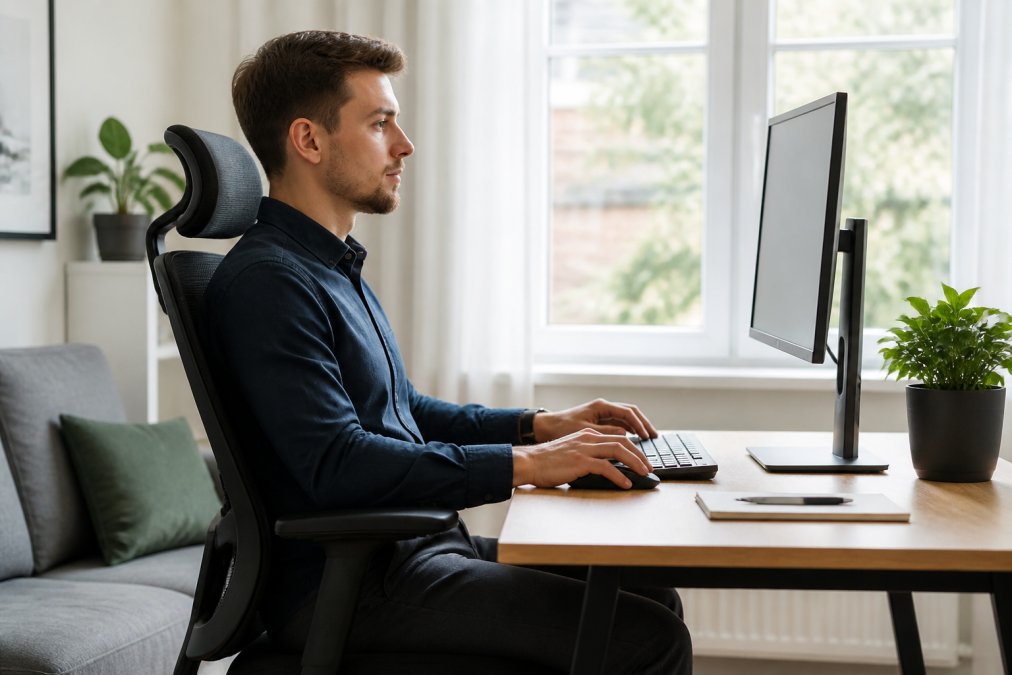
Position your monitor at arm's length away, roughly 50-70 centimetres from your eyes (guidance from the Health and Safety Executive). This reduces eye strain and prevents you from leaning forward. If you're squinting, adjust the font size in your applications rather than moving the monitor closer.
The top of the screen should be at or slightly below eye level. Use a monitor stand or stack of books to raise it if needed. Position your screen perpendicular to windows so sunlight doesn't create glare. Adjust your monitor brightness to match your room's ambient light.
Step 3: Position Your Keyboard and Mouse Correctly
Your keyboard and mouse position directly affects your wrists, forearms, shoulders, and neck. The correct position is with your elbows at a 90-degree angle and your wrists in a neutral, straight position.
Your keyboard should sit at elbow height when your arms hang naturally at your sides. If your desk is too high, use a keyboard tray that mounts underneath. If your desk is too low, raise it with desk risers or use a standing desk converter.
The mouse should be at the same height as your keyboard and directly next to it, so your arm doesn't reach out to the side. Keep the mouse close to your body; your elbow should stay near your ribs, not extended outward.
If you work on a laptop, invest in an external keyboard and mouse. Laptop keyboards are too low and too close together, forcing your wrists into awkward angles. Consider a mechanical keyboard with good key travel and feedback, which reduces the force you need to type and lowers strain.
Step 4: Adjust Desk Height and Work Surface Layout
Your desk height sets the stage for everything else in your workspace. The correct height is with your elbows at a 90-degree angle when your arms hang naturally, and your keyboard at that height.
Standard desk height is around 73 centimetres, which works for people of average height. If you're significantly taller or shorter, adjustable standing desks let you switch between sitting and standing throughout the day.
Keep frequently used items within arm's reach, your keyboard, mouse, phone, and water bottle should all be accessible without reaching or twisting. Use cable clips or ties to keep cables organised and away from your work surface.
If you use multiple monitors, position them in a slight arc so both screens are roughly equidistant from your eyes. Your primary monitor should be directly in front of you, with secondary monitors angled slightly.
Step 5: Complete a DSE Workstation Assessment Checklist
The Display Screen Equipment (DSE) Regulations in the UK require employers to assess workstations. Remote workers should apply the same principles to their home offices.
| Aspect | Assessment | Action if Failed |
|---|---|---|
| Chair height | Feet flat, thighs parallel to floor | Adjust seat height or add footrest |
| Back support | Lower back supported, no gap | Add lumbar support pillow or replace chair |
| Monitor height | Top of screen at or below eye level | Raise monitor on stand |
| Monitor distance | Arm's length away (50-70cm) | Move monitor forward or adjust zoom |
| Keyboard height | Elbows at 90°, wrists neutral | Lower keyboard tray or raise desk |
| Mouse position | At keyboard height, close to body | Move mouse closer, use keyboard tray |
| Desk height | Elbows at 90° when seated | Adjust desk height or use riser |
| Lighting | No glare on screen | Reposition screen or adjust blinds |
| Footrest | Feet flat on floor or footrest | Add footrest if feet dangle |
| Breaks | Changing position every 30 minutes | Set timer for movement breaks |
Work through each item and prioritise the biggest problems first, typically chair height, monitor height, and keyboard position, since these affect posture most directly.
Step 6: Add Supportive Accessories to Reduce Strain
Once your main setup is correct, targeted accessories address specific problem areas. A cervical pillow supports your neck during work. The NeckRelief Pro™ (£34.99) provides targeted cervical support designed to ease neck strain after hours of screen time.
A lumbar support pillow fills the gap between your lower back and your chair. The SpineFlow™ (£34.99) is engineered to address back pain from prolonged sitting.
A footrest keeps your feet flat and your hips level, crucial if your desk is too high or your chair is too tall. Wrist rests prevent wrist bending during typing and mousing. A document holder positions reference materials at eye level so you don't have to look down at your desk.
The HandRelief Pro™ (£54.99) addresses hand and wrist mobility if you've experienced strain. For eye strain and tension headaches, the Lumo Relief™ Heated Migraine Mask (£18.00) provides relief in just 15 minutes.

Remember that accessories complement proper setup; they don't replace it. Fix the fundamentals first, then add accessories to address remaining discomfort.
Step 7: Take Regular Breaks and Move Throughout the Day
Even a perfectly ergonomic setup becomes problematic if you sit in the same position for eight hours straight. Your body needs movement and position changes to prevent fatigue and strain.
Set a timer to move every 30 minutes. Standing up, stretching, and walking to another room for two minutes breaks the static load on your spine and muscles. Movement increases blood flow, prevents muscle fatigue, and gives your eyes a break from the screen.
Vary your work positions throughout the day. If you have a standing desk, alternate between sitting and standing every 30-60 minutes. Position changes reduce the cumulative strain that comes from any single posture.
Stretching is essential. Neck rolls, shoulder shrugs, wrist flexion and extension, and spinal twists all counteract the tension that builds during focused work. A 60-second stretch routine every hour prevents tightness from accumulating into pain.
Walking breaks are particularly valuable. A 5-10 minute walk away from your desk resets your posture, improves circulation, and clears your mind.
Pay attention to your body's signals. If you notice tension building in your neck, shoulders, or back, address it immediately with stretching, position changes, or a short break. Early intervention prevents minor discomfort from becoming chronic pain.
Improving home office ergonomics is a process, not a one-time fix. Start with the fundamentals, your chair, monitor height, and keyboard position, then add accessories and habits that address your specific needs. Most people experience noticeable improvement within a week of making these adjustments.
The investment in proper ergonomics pays dividends in comfort, productivity, and long-term health. Neck pain, back strain, and repetitive injuries are preventable with the right setup and habits. At Inspree, we've curated products like the NeckRelief Pro™ and SpineFlow™ to support your journey toward a healthier, more comfortable workspace. Start with one adjustment today, your future self will thank you.
Frequently Asked Questions
What is the correct posture for sitting at a desk?
Correct desk posture keeps your back against the chair with shoulders relaxed, elbows at 90 degrees, and feet flat on the floor or footrest. Your monitor should be at eye level to prevent neck strain. Your wrists should be neutral, not bent upward or downward. This alignment reduces pressure on your spine and neck, preventing the long-term discomfort that comes from hours of poor posture. Investing in an ergonomic chair with lumbar support makes maintaining this posture much easier throughout the day.
How do I improve home office ergonomics on a budget?
Start with free adjustments: raise your monitor on books or a stand to eye level, position your keyboard so elbows bend at 90 degrees, and ensure your feet rest flat. Then prioritise affordable additions like a lumbar support cushion, keyboard wrist rest, or monitor riser. The NeckRelief Pro™ and SpineFlow™ provide targeted support for common problem areas without breaking the bank. Small changes to your desk layout often deliver the biggest comfort improvements before spending on expensive furniture.
What are the Health and Safety (Display Screen Equipment) Regulations for home workers?
The Health and Safety (Display Screen Equipment) Regulations 1992 require employers to assess workstations and provide suitable equipment, even for home-based workers. Your employer should conduct a DSE assessment to identify risks like poor posture, inadequate lighting, or unsuitable furniture. You have the right to request an assessment, eye tests, and corrective glasses if needed. Completing a DSE workstation assessment checklist helps identify gaps in your setup and ensures compliance with these regulations.
How high should my monitor be for ergonomic comfort?
Position your monitor so the top of the screen is at or slightly below eye level when you're sitting upright. The screen should be about an arm's length away (50-70 centimetres). This prevents you from looking down, which causes neck strain and the forward head posture that leads to neck pain. If you use a laptop, raise it on a stand and add an external keyboard to achieve the correct height. Proper monitor setup is one of the quickest ways to reduce eye fatigue and neck discomfort.
This article was written using GrandRanker